
Link to Windows

by Microsoft Corporation

3.8 ★ 1.2M+ reviews
3B+ Installs
12/16/2015 Released
Link to Windows icon
Productivity

Link to Windows

by Microsoft Corporation

3.8 ★ 1.2M+ reviews
3B+ Installs
12/16/2015 Released
Advertisements
Link to Windows screenshot 1
Link to Windows screenshot 2
Link to Windows screenshot 3
Link to Windows screenshot 4
Link to Windows screenshot 5
Link to Windows screenshot 6

Ratings Breakdown

3.8 ★★★★★ 1.2M+ ratings
5 ★ 60%
4 ★ 9%
3 ★ 6%
2 ★ 4%
1 ★ 22%

Data from Google Play at the time of writing.

What Link to Windows Actually Does

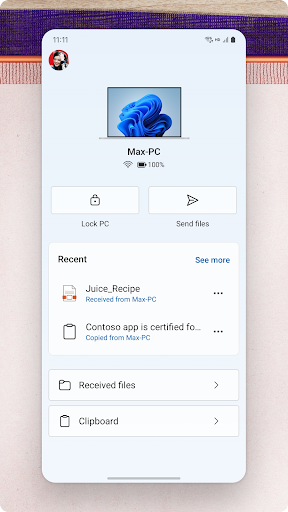
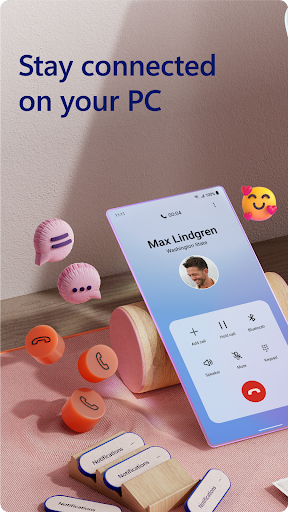
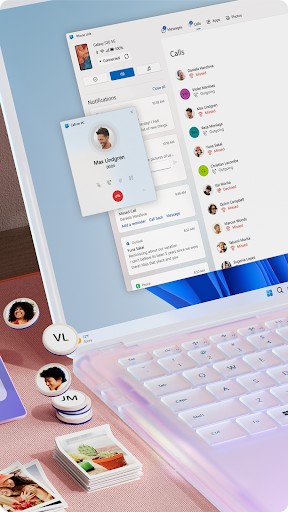
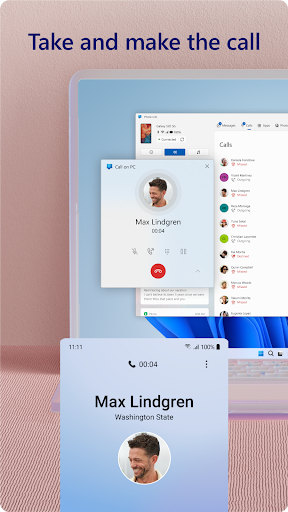
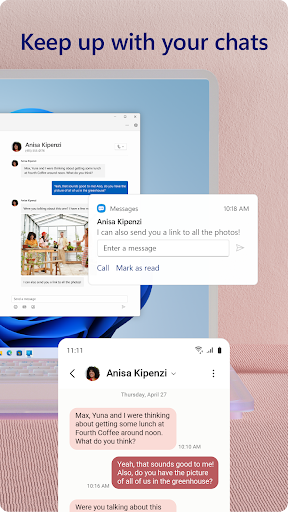
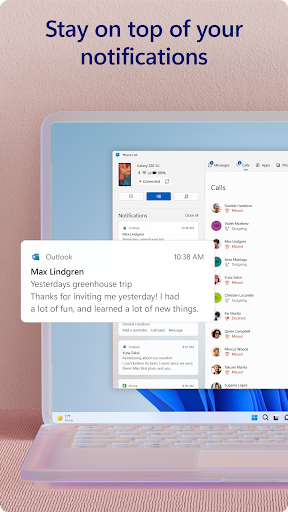
Link to Windows is Microsoft’s bridge between an Android phone and a Windows PC, better known on the desktop side as Phone Link. Install this app on your phone, pair it with the Phone Link app on your PC, and you can read texts, take calls, check notifications, and pull photos over to your computer without picking up your handset. It’s aimed at anyone who spends most of the workday at a desktop and would rather not keep glancing at their phone every time it buzzes.

On Samsung and HONOR devices, and select Microsoft Duo phones, the integration goes further, with drag-and-drop file transfers, a mirrored phone screen, and the ability to run mobile apps in their own windows. Everyone else gets the core set: messaging, notifications, calls, and photo access, which is still the main draw for most users.

Where It Genuinely Delivers

When the connection is stable, reviewers consistently say the experience is legitimately useful. One user describes keeping a ‘maximized’ phone window parked on the side of their desktop just to handle messaging and even play mobile games while working on other things. That kind of workflow only happens because the core idea works: texting from a keyboard, seeing notifications pop up alongside desktop ones, and grabbing a photo without emailing it to yourself are real productivity wins when the app cooperates.

For anyone whose day is split between a PC and an Android phone, that convenience is hard to replicate any other way, especially since it’s a free, built-in Microsoft feature rather than a third-party workaround.

The Connection Problems That Won’t Go Away

The most common and damaging complaint across reviews is reliability. Multiple users describe the app working fine for a while and then sporadically losing sync or dropping the Bluetooth/network connection for no discernible reason. One reviewer called it ‘the most persistently annoying app’ they’ve used, saying reconnecting is ‘a coin toss’ and sometimes requires rebooting the PC or fully removing and re-adding the device rather than a simple reconnect. Another echoed that refreshing the desktop app does nothing, and the only fix is toggling the phone’s connection setting off and on.

File sharing gets singled out too, with one user noting it worked about three times before quietly stopping altogether. There are also reports of the two apps disagreeing on which Microsoft account is signed in, with the PC and phone showing different emails and the PC reverting back to the wrong one even after re-entering correct credentials.

Performance and Battery Concerns

Beyond disconnects, there are complaints about the app being a background drain even when it’s not actively transferring anything. One reviewer reported it slowing down their phone, PC, and internet connection simply while linked, and said that manually disconnecting doesn’t stick — the app restarts itself and keeps trying to reconnect even after being disabled in phone settings. That kind of behavior is a real concern for anyone trying to conserve battery life or bandwidth on a metered connection.

A Broader Pattern of Inconsistency

Several reviews describe the app suddenly breaking after previously working well, with uninstalling and reinstalling failing to fix anything and the app left stuck spinning or unable to link at all. This ‘it just stopped working one day’ pattern shows up often enough that it looks less like isolated bad luck and more like a real weak spot in how updates and syncing are handled. For an app this central to daily workflow, that inconsistency undercuts a lot of the goodwill earned when it’s running properly.

Final Verdict

Link to Windows is worth installing if you’re a heavy Windows user with an Android phone and you’re willing to tolerate occasional reconnect headaches in exchange for genuinely handy features like desktop texting and easy photo transfers. It’s free, it’s built by Microsoft, and when it works, it noticeably reduces phone-checking friction during the workday. But go in expecting some flakiness: dropped connections, stalled file transfers, and the occasional need to nuke the pairing and start over are common enough complaints that they shouldn’t be dismissed as edge cases. If rock-solid reliability is non-negotiable for you, this app will test your patience.

Pros

  • ✓Free desktop texting and calling
  • ✓Handy photo transfer without emailing yourself
  • ✓Notification mirroring works well when stable
  • ✓Drag-and-drop on supported Samsung/HONOR phones
  • ✓Built directly into Windows, no extra cost

Cons

  • ✕Frequent random disconnects and sync failures
  • ✕File sharing often stops working entirely
  • ✕Drains battery and bandwidth even idle

What Real Users Say

Jared Nunemacher ★ 2/5

“This app does well in representing everything that is wrong with modern software development practices and their consequences. When it works, works well. Problem is it will work fine then sporadically have sync or connection issues for no reason. File share worked about 3 times then stopped. App updates frequently, but no idea what for. Developer changing code to show…”

👍 976 found this helpful
Lance Frazier ★ 4/5

“Overall, this is a nice way to access your mobile on your computer. I keep a phone window 'maximized' on the left side of my desktop for ease of messaging and to play games while still using my computer. Some apps need to be minimized then reopened to work properly. Occasionally the phone window will not load and the app…”

👍 684 found this helpful
Nicholas ★ 2/5

“App is intermittent/glitchy. Right now, nothing has changed, and yet my phone link app on my laptop will not connect to my phone via Bluetooth/Mobile. And you cant just remove your phone and re-add it. It's a whole process that makes no sense which requires replacing your old connection instead of deleting and adding. But why does it disconnect in…”

👍 391 found this helpful

Reviews sourced from Google Play, selected by helpfulness at the time of writing.

App Info & Permissions

Developer Microsoft Corporation
Content rating Everyone
Contains ads No
Installs 3B+
Released 12/16/2015
Price Free

Permissions this app requests

📷 Camera Take pictures and videos
👥 Contacts Find accounts on the device; read your contacts
📱 Device ID & call information Read phone status and identity
🪪 Identity Find accounts on the device; add or remove accounts
📍 Location Approximate location (network-based); precise location (GPS and network-based)
🎙️ Microphone Record audio
📞 Phone Read call log; read phone status and identity
🖼️ Photos/Media/Files Read the contents of your USB storage; modify or delete the contents of your USB storage
💬 SMS Read your text messages (SMS or MMS); send SMS messages
💾 Storage Read the contents of your USB storage; modify or delete the contents of your USB storage
📶 Wi-Fi connection information View Wi-Fi connections

Similar Apps

Frequently Asked Questions

1

What is Link to Windows?

Link to Windows is the Android companion app for Microsoft's Phone Link feature on Windows. It lets you view and reply to text messages, make and receive calls, check notifications, and transfer photos between your phone and PC. It pairs with the Phone Link app on your Windows 10 or 11 computer to sync data between the two devices.

2

Is Link to Windows free?

Yes, the app is completely free to download and use, as it's a built-in Microsoft feature rather than a paid product. There are no subscription tiers or in-app purchases mentioned. You just need a compatible Android phone and a Windows PC with Bluetooth for calling features.

3

Why does Link to Windows keep disconnecting?

Many users report frequent, unexplained disconnects between the phone and PC, sometimes requiring a full removal and re-pairing of the device rather than a simple reconnect. Toggling the connection off and on in phone settings sometimes helps, but reviewers say the issue recurs often. This appears to be an ongoing, unresolved reliability problem rather than a one-time bug.

4

Does Link to Windows work with all Android phones?

Basic features like messaging, notifications, and calls work on most Android phones running the required OS version. However, advanced features like drag-and-drop file transfer, phone screen mirroring, and running mobile apps in windows require a compatible Samsung, HONOR, or Microsoft Duo device. Check Microsoft's device compatibility list before expecting the full feature set.

5

Does Link to Windows drain phone battery?

Some users report the app continuing to run and attempt reconnections in the background even after being manually disconnected or disabled in settings. This has been linked to complaints about slower phone performance and battery drain while the app is active. If battery life is a priority, keep an eye on the app's background activity.